VPN SETUP · ANDROID

Set up VPN on Android.

Use the recommended Android app for the easiest setup, or choose manual configuration when you need it.

Quick setup

The quickest way to connect on Android

Have an active VPN-Accounts.com account, your VPN credentials and a working internet connection ready.

Get VPNClient on Google Play

Google Play is the recommended normal installation path. The approved direct APK is available below when Google Play cannot be used.

  1. 01

    Install VPNClient from Google Play.

  2. 02

    Open the app.

  3. 03

    Enter the VPN account details supplied after purchase.

  4. 04

    Choose a current server location.

  5. 05

    Start with WireGuard where appropriate.

  6. 06

    Tap Start to connect.

Install and connect

Set up VPNClient on Android

The setup flow uses only controls confirmed by the current Android VPNClient screenshots.

  1. 01

    Install VPNClient

    Use Google Play for the normal installation path, or the approved direct APK when Google Play cannot be used.

  2. 02

    Open the app

    Launch VPNClient after installation and allow the normal Android VPN connection prompt when it appears.

  3. 03

    Sign in

    Enter the VPN account credentials supplied after purchase.

  4. 04

    Choose a server

    A nearby server is a good starting point; choose a specific country when its visible VPN IP location matters.

  5. 05

    Choose a connection option

    Start with WireGuard, or use a current OpenVPN option when appropriate for the network.

  6. 06

    Connect and confirm

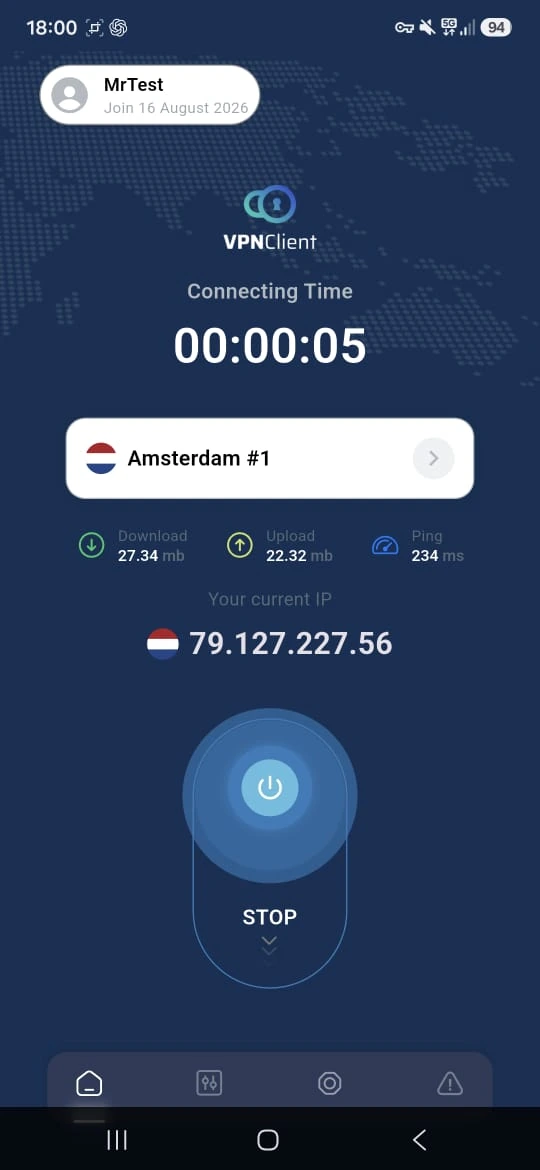
    Tap Start and confirm that VPNClient shows the selected server, connection time and current VPN IP.

Connected?

VPNClient shows the selected server, connection time and current VPN IP.

Check the connection

What VPNClient looks like on Android

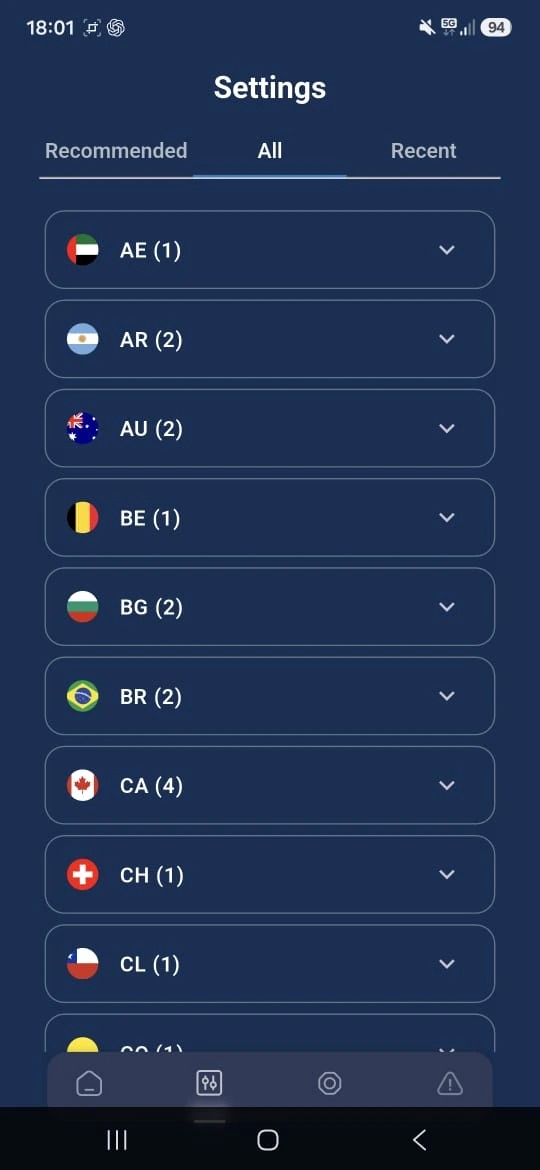
The connected view confirms the session while the server list keeps current locations selectable.

VPNClient Android connected screen
Connect through your selected VPN server
VPNClient Android server location list
Choose a current VPN location

Connection choice

Which Android connection option should I use?

Start with WireGuard. Broader protocol explanations are available in the VPN FAQ.

01

Recommended starting point

WireGuard

The modern starting option exposed by the current Android VPNClient.

02

Current OpenVPN option

UDP OpenVPN

A current app option commonly suitable where UDP connections work.

03

TCP-based alternative

TCP OpenVPN

A current alternative when a TCP-based OpenVPN connection is useful.

Android controls

Useful Android VPNClient settings

These controls are visible in the current Android app. Their displayed state is not treated as a universal recommendation.

01

Network Lock

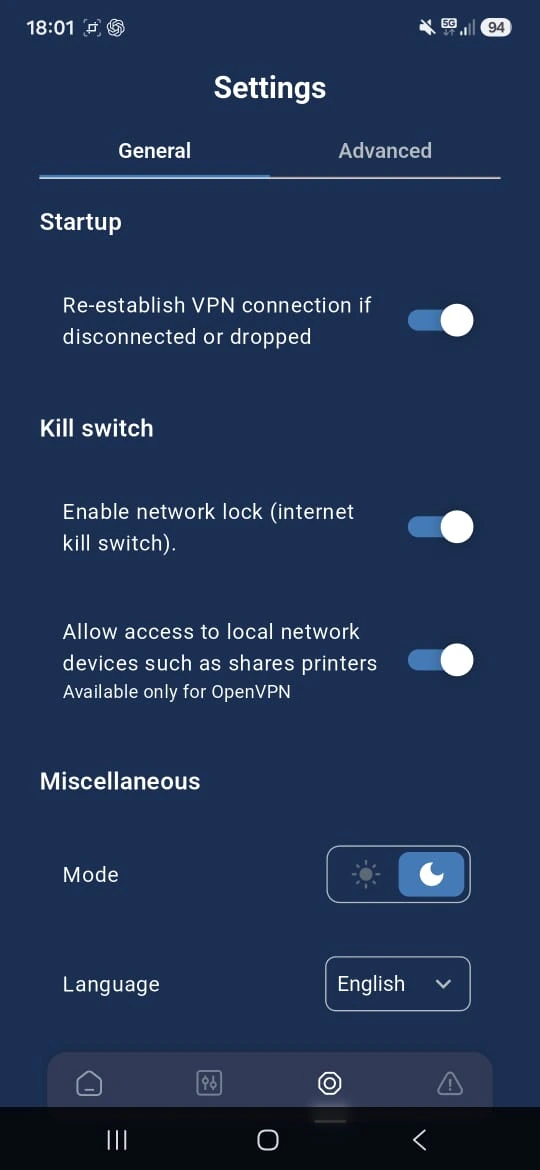
The current Android VPNClient includes a Network Lock (internet kill switch) setting. No default state or protocol-specific behavior is claimed.

02

Reconnect option

The app exposes an option to re-establish the VPN connection if it is disconnected or dropped.

03

Advanced settings

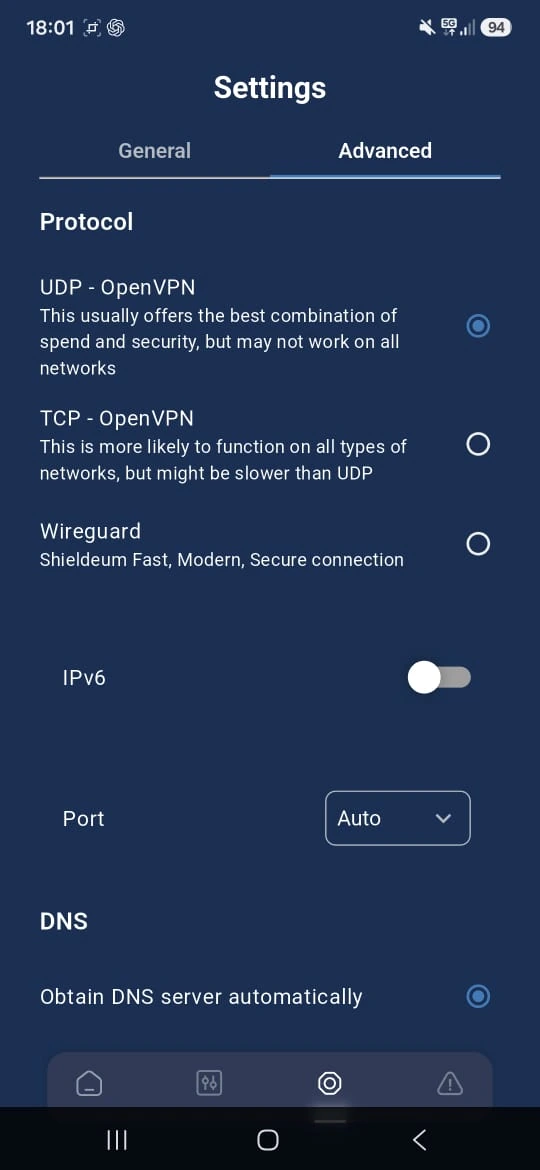
Most customers should leave IPv6, port and DNS controls at their normal values unless troubleshooting or following specific instructions.

Android connection settings

General and Advanced screens confirm the available controls without requiring a long networking tutorial.

VPNClient Android General settings
Reconnect and Network Lock options
VPNClient Android Advanced protocol settings
WireGuard, OpenVPN, port and DNS choices

Direct installation

Can't use Google Play?

Download VPNClient directly as an APK from the approved VPNClient source. Android may ask you to allow your browser or file manager to install this APK. Review the prompt carefully and install only the file from this link.

Download VPNClient APK

Connection checks

VPNClient not connecting on Android?

Use these checks before moving to the full troubleshooting guide.

  1. Confirm the VPN account credentials.
  2. Restart VPNClient.
  3. Try another current server.
  4. Try WireGuard or another current OpenVPN option.
  5. Compare Wi-Fi with mobile data and note the exact error.

Android FAQ

Android setup answers

For broader product questions, visit the VPN FAQ.

What is the easiest way to set up VPN on Android?

Install VPNClient from Google Play, sign in with the VPN account details supplied after purchase, choose a current server and start with WireGuard.

Should I install VPNClient from Google Play or the APK?

Google Play is the recommended normal installation path. Use the approved direct APK when Google Play is unavailable or cannot be used on the device.

Which Android connection option should I use?

Start with WireGuard. UDP OpenVPN and TCP OpenVPN are current alternatives in the Android VPNClient when another connection type is useful.

Does Android VPNClient have a kill switch?

The current Android VPNClient includes a Network Lock (internet kill switch) setting. It is not described here as enabled by default, protocol-specific or a guarantee against every leak.

Can I choose a specific server?

Yes. The current server list lets you choose a country and available location. A nearby server is a practical starting point; choose a specific country when visible VPN IP location matters.

What should I do if VPNClient will not connect?

Confirm the account details, restart VPNClient, try another current server, try WireGuard or another current OpenVPN option, and compare Wi-Fi with mobile data before contacting Support.

Android VPN access

Ready to connect on Android?

Install the current VPNClient, or get VPN access before you begin.