Desktop
Windows
RecommendedVPNClient desktop softwareDownload the current Windows VPNClient, then sign in with your VPN account details.

VPN setup
Set up VPN access on Windows, macOS, iPhone and iPad, Android, Linux and supported TV devices. Start with the recommended client or app where available, or use manual configuration when you need it.
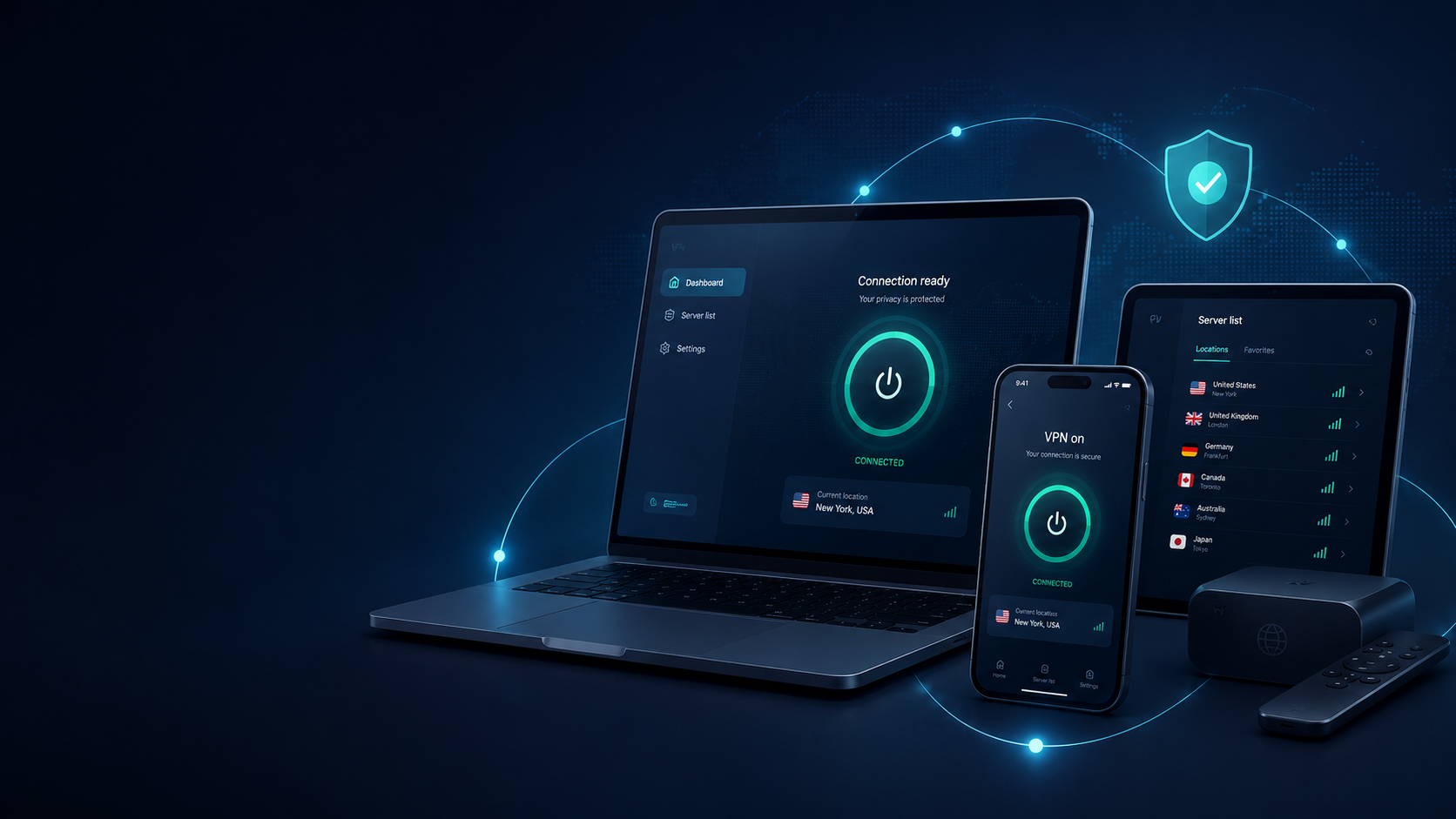
Device first
Download the current Windows VPNClient, then sign in with your VPN account details.
Use the current macOS VPNClient for convenient server and connection controls.
Install the current App Store VPNClient for iOS, then add your VPN account.
Use Google Play for normal installation. The direct APK is an alternative when Google Play is unavailable.
Beta for Ubuntu 16 and 18.
Install the TV APK directly. If you use Downloader, enter code 5816313.
Use the verified mobile listings for iPhone, iPad and Android.


Quick answer
Get a VPN account, install the recommended client or app for your device, enter the account details supplied after purchase, choose a current server and connect. Use manual setup only when you need a built-in or third-party connection method.
Choose your device →Choose a setup path
Best for most customers who want the simplest route from account details to a working connection.
Useful when a built-in connection, a specific supported protocol or a third-party OpenVPN client is preferred.
Account-specific configurations
Prefer to configure your VPN manually? Sign in to your VPN-Accounts dashboard to generate account-specific configurations for OpenVPN, WireGuard and VLESS. Start with our WireGuard, OpenVPN and VLESS comparison, or follow the WireGuard file import guide.
Generate an OpenVPN profile for your account and import it into OpenVPN Connect.
Get OpenVPN Connect ↗Generate your WireGuard configuration and import it into the official WireGuard app.
Get WireGuard ↗Generate a VLESS configuration file and import it into a compatible client such as Hiddify.
Get Hiddify ↗Connection checks
A few quick checks can help you find the cause. Try one change at a time, then reconnect.
Use the VPN username and password from your purchase email.
Choose another available server and try connecting again.
Compare Wi-Fi with mobile data to see whether the network is the cause.
Try another protocol supported by your app and device.
Tell Support your device, server and what you tried so we can help with the next step.
Setup FAQ
Start with the recommended client or app for your device. Download it, enter the VPN account details supplied after purchase, choose a current server and connect.
Use the current VPNClient download for Windows or macOS, the App Store VPNClient for iPhone and iPad, or the Android VPNClient from Google Play. Client and feature availability varies by platform.
Yes. Manual setup can be useful when you prefer an operating-system connection, need a particular supported protocol or use a third-party OpenVPN client.
WireGuard is the modern recommended option. OpenVPN and IKEv2/IPsec are supported. VLESS manual configuration is also available. Stealth is a separate option available on supported desktop VPNClient applications. L2TP/IPsec and PPTP are legacy compatibility options. Availability varies by client and platform.
Use the Server Hostnames reference for the current country, city, hostname and published IP inventory. Check the snapshot date when a specific location matters.
Sign in to your dashboard, choose a server and port in the OpenVPN section, then select Download OpenVPN config. Import the downloaded file into your OpenVPN app.
Yes. Each customer VPN account supports up to 10 simultaneous connections.
Verify the account details, try another current server, compare another network, try another supported client or protocol option, and note the exact error. Contact Support if the issue continues.
Stealth is available through supported desktop VPNClient applications for restrictive networks.
VPN access
Choose a plan, then use the setup path that fits your device.